
Orbit — AI Research Harness for Galaxy
Orbit turns any working directory into a co-scientist project. Orbit is the Electron desktop shell that puts Galaxy, an AI agent, and your analysis notebook in one window.
On this page
Orbit is an AI agent for biological (and not only) data analytics. It lets you have a conversation about your data, draft and approve analysis plans, route steps to Galaxy or run them locally, and watch everything accumulate in a notebook — the durable project record that persists across sessions.
/feedback command); you can also file issues at github.com/galaxyproject/loom/issues. Your reports help us make it better!
What can it do? Here’s a few examples…
“PIR genes are central to P. vivax immune evasion and we still don’t understand their subfamily structure. Find the latest long-read assemblies, extract all PIR sequences, cluster them de novo, and show me how the subfamilies are distributed across strains from different continents and genomic locations.”
→ Literature survey, SRA discovery, sequence extraction, clustering, comparative analysis — all in one session
“This paper used an outdated C. auris reference: PMID 37769084. Pull every SRA dataset they deposited, rerun the analysis against the current genome, and tell me what changes — I want to know if their conclusions still hold.”
→ Paper parsing, SRA bulk download, Galaxy workflow execution, differential comparison
“I just did Cut&Run for H3K27ac in treated vs. control. FASTQs are in my Downloads folder. Walk me through the analysis, call the peaks, and overlay them with the RNA-seq differential expression I ran last month — I want to know which DEGs have changed chromatin accessibility.”
→ Local file discovery, Galaxy tool routing, peak calling, cross-experiment integration
Installation
All installers are on the Releases page. Pick the file that matches your computer:
| Your system | Download | Notes |
|---|---|---|
| macOS — Apple Silicon (M1/M2/M3/M4) | Orbit-<version>-arm64.dmg | Recommended installer |
| macOS — Intel | Orbit-<version>-x64.dmg | Recommended installer (v0.3.1+) |
| Linux — Debian / Ubuntu / Mint / Pop!_OS | orbit_<version>_amd64.deb | sudo dpkg -i <file> |
| Linux — Fedora / RHEL / CentOS / openSUSE | orbit-<version>-1.x86_64.rpm | sudo rpm -i <file> |
| Linux — any distro | Orbit-linux-x64-<version>.zip | Extract and run orbit (no system install) |
| Windows | — | WSL2 + Ubuntu, then use the .deb (see below) |
Not sure which Mac chip you have? Apple menu → About This Mac: “Chip: Apple M…” is Apple Silicon (use arm64); “Processor: Intel…” is Intel (use x64).
The *.zip “portable” builds — Orbit-darwin-arm64-<version>.zip (macOS Apple Silicon),
Orbit-darwin-x64-<version>.zip (macOS Intel), and Orbit-linux-x64-<version>.zip (Linux) — are
unpacked-app alternatives to the installers above: no system install, just extract and run. The
Source code archives are only for building Orbit yourself.
macOS
Download the .dmg for your chip (arm64 for Apple Silicon, x64 for Intel — see the table above
if you’re unsure which you have):
- Double-click the DMG and drag Orbit to Applications.
- Eject the DMG. The app is Developer-ID signed + notarized, so it opens with a normal double-click.
Linux
| File | Distribution |
|---|---|
orbit_<version>_amd64.deb | Debian, Ubuntu, Mint, Pop!_OS |
orbit-<version>-1.x86_64.rpm | Fedora, RHEL, CentOS, openSUSE |
Orbit-linux-x64-<version>.zip | Any distro (extract and run orbit) |
# Debian/Ubuntu
sudo dpkg -i orbit_<version>_amd64.deb
sudo apt-get install -f
orbit

# Fedora/RHEL
sudo rpm -i orbit-<version>-1.x86_64.rpm
orbit
Windows (via WSL2)
Native Windows builds are not yet available. Windows 11 users with WSL2 + WSLg can run the Linux .deb directly — WSLg provides native GUI support with no X server setup required.
From an elevated PowerShell, install WSL2 if needed:
wsl --install --web-download -d UbuntuThen inside the Ubuntu terminal, download the .deb from the Releases page and:
sudo dpkg -i orbit_<version>_amd64.deb
sudo apt-get install -f
orbit~/ (the Linux filesystem) — /mnt/c/ paths are significantly slower across the filesystem boundary. API key encryption via safeStorage is not available in WSL2; keys are stored in plaintext in ~/.loom/config.json. Restrict access with chmod 600 ~/.loom/config.json.
Getting API keys
Orbit needs at least one LLM provider key, and optionally a Galaxy API key for routing analysis steps to Galaxy servers.
Anthropic (Claude)
- Go to console.anthropic.com.
- Sign in or create an account.
- Navigate to API Keys in the left sidebar.
- Click Create Key, give it a name, and copy the
sk-ant-...string.
OpenAI
- Go to platform.openai.com.
- Sign in or create an account.
- Open Settings → API keys.
- Click Create new secret key, copy the
sk-...string.
Google Gemini
- Go to aistudio.google.com.
- Sign in with a Google account.
- Click Get API key → Create API key.
- Copy the key string.
DeepSeek
- Go to platform.deepseek.com.
- Sign in or create an account.
- Navigate to API Keys in the left sidebar.
- Click Create API Key, give it a name, and copy the
sk-...string.
DeepSeek V4 Pro and Flash are very cost-effective — roughly 10–20× cheaper than comparable Anthropic/OpenAI models.
Galaxy API key
- Log in to your Galaxy server (e.g., usegalaxy.org).
- Open User → Preferences → Manage API Key.
- If you already have a key, copy it; otherwise click Create a new key, then copy it.
Entering credentials in Orbit
Open Preferences with Cmd/Ctrl+, or by clicking the Galaxy connection indicator in the footer.
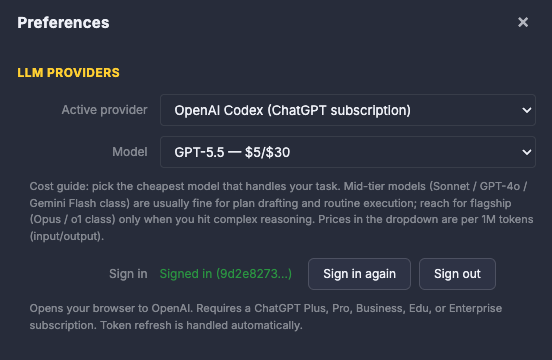
In the Provider section, select your LLM provider (Anthropic, OpenAI, Google, DeepSeek, or other providers), paste the API key, and choose a default model.
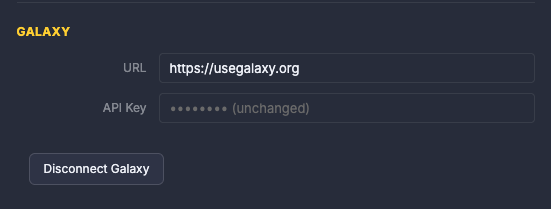
In the Galaxy section, enter your Galaxy server URL and API key. The footer indicator turns green when the connection is confirmed.
Click Save. The agent restarts with the new configuration.
Selecting a model
Orbit uses a large language model (LLM) as its reasoning engine — the model is what reads your data descriptions, drafts analysis plans, decides how to route steps to Galaxy, and interprets results. Different models are suited to different parts of that workflow.
Two phases of work call for different models. Designing an analysis — figuring out what to do with a dataset, surveying the literature, or constructing a multi-step plan — benefits from the most capable model you can afford. Actually running the plan — invoking Galaxy tools, polling job status, writing results to the notebook — is mostly repetitive and a cheaper model handles it just as well. When you run /execute on an expensive model, Orbit surfaces a one-time reminder suggesting a switch to save cost.
If you are using Anthropic API keys, we recommend starting with Claude Sonnet 4.6 for most sessions: capable enough for demanding work, fast, and roughly 5× cheaper than Opus.
Anthropic (Claude)
| Model | Best for | Price (in/out per 1M tokens) |
|---|---|---|
claude-opus-4-7 | Complex planning, literature survey, novel analysis design | $15 / $75 |
claude-sonnet-4-6 | General use — planning and execution (recommended) | $3 / $15 |
claude-haiku-4-5 | Mechanical execution of explicit step-by-step plans | $1 / $5 |
OpenAI
| Model | Best for | Price (in/out per 1M tokens) |
|---|---|---|
gpt-5.4 | Frontier reasoning, complex multi-step analysis | — |
gpt-5.4-mini | Balanced capability and cost | — |
o3 | Deep scientific reasoning, extended chain-of-thought | — |
o3-mini | Lightweight reasoning, execution tasks | — |
gpt-4o | General reasoning, plan drafting | $2.50 / $10 |
gpt-4o-mini | Fast execution, cost-sensitive sessions | $0.15 / $0.60 |
— = list price not yet published; check the OpenAI pricing page for current rates.
Google Gemini
| Model | Best for | Price (in/out per 1M tokens) |
|---|---|---|
gemini-3.1-pro-preview | Complex reasoning, agentic tasks | $2–$4 / $12–$18 |
gemini-3.5-flash | Production workloads, sustained performance | $1.50 / $9 |
gemini-3.1-flash-lite | High-volume, cost-efficient execution | $0.25 / $1.50 |
gemini-2.5-flash-lite | Fastest, cheapest option | $0.10 / $0.40 |
DeepSeek
| Model | Best for | Price (in/out per 1M tokens) |
|---|---|---|
deepseek-v4-pro | Strong reasoning at very low cost, 1M context | $0.44 / $0.87 |
deepseek-v4-flash | Fast execution, budget sessions, 1M context | $0.14 / $0.28 |
Both DeepSeek V4 models support a thinking mode for extended reasoning and a standard mode for direct responses.
Other providers — Mistral, Groq, xAI/Grok, and local Ollama models (Qwen3) are available in Preferences → Provider. Ollama models run entirely on your machine at no API cost, but need to be installed and configured first. Orbit can help you do that, however you need a computer with a substantial GPU to take advantage of local inference (see Nekrutenko 2026).
Switching models
You can switch models at any point during a session in three ways:
1. Footer model button — click the model name shown in the footer bar at the bottom of the window. This opens Preferences directly on the provider/model selector.
2. Preferences — open with Cmd/Ctrl+, and choose a different provider or model from the dropdowns, then click Save.
3. Slash command in chat — type /model <name> and press Enter. Orbit restarts the agent with the new model immediately. Use the exact model ID (e.g. /model claude-sonnet-4-6, not /model sonnet).

Switching mid-session is intentional — start on a capable model to design the analysis, then drop to a cheaper one.
API keys vs. subscription
For most providers — Anthropic, Google, DeepSeek, Mistral, and others — Orbit connects through the provider’s API. You pay per token, directly to the provider. Rates are shown in the tables above.
For OpenAI, Orbit also supports signing in with your existing ChatGPT subscription. Instead of an API key, you authenticate through a browser sign-in flow (OAuth), and the models run against your subscription rather than the pay-per-token API. This is generally cheaper if you already pay for ChatGPT Plus or Pro. The OpenAI subscription provider is listed as OpenAI Codex (ChatGPT subscription) in Preferences; click Sign in with ChatGPT to authenticate.
Direct subscription auth currently works only for OpenAI. We are exploring whether similar flows can be added for Anthropic (Claude.ai) and Google (Gemini Advanced) in a future release.
Interface overview
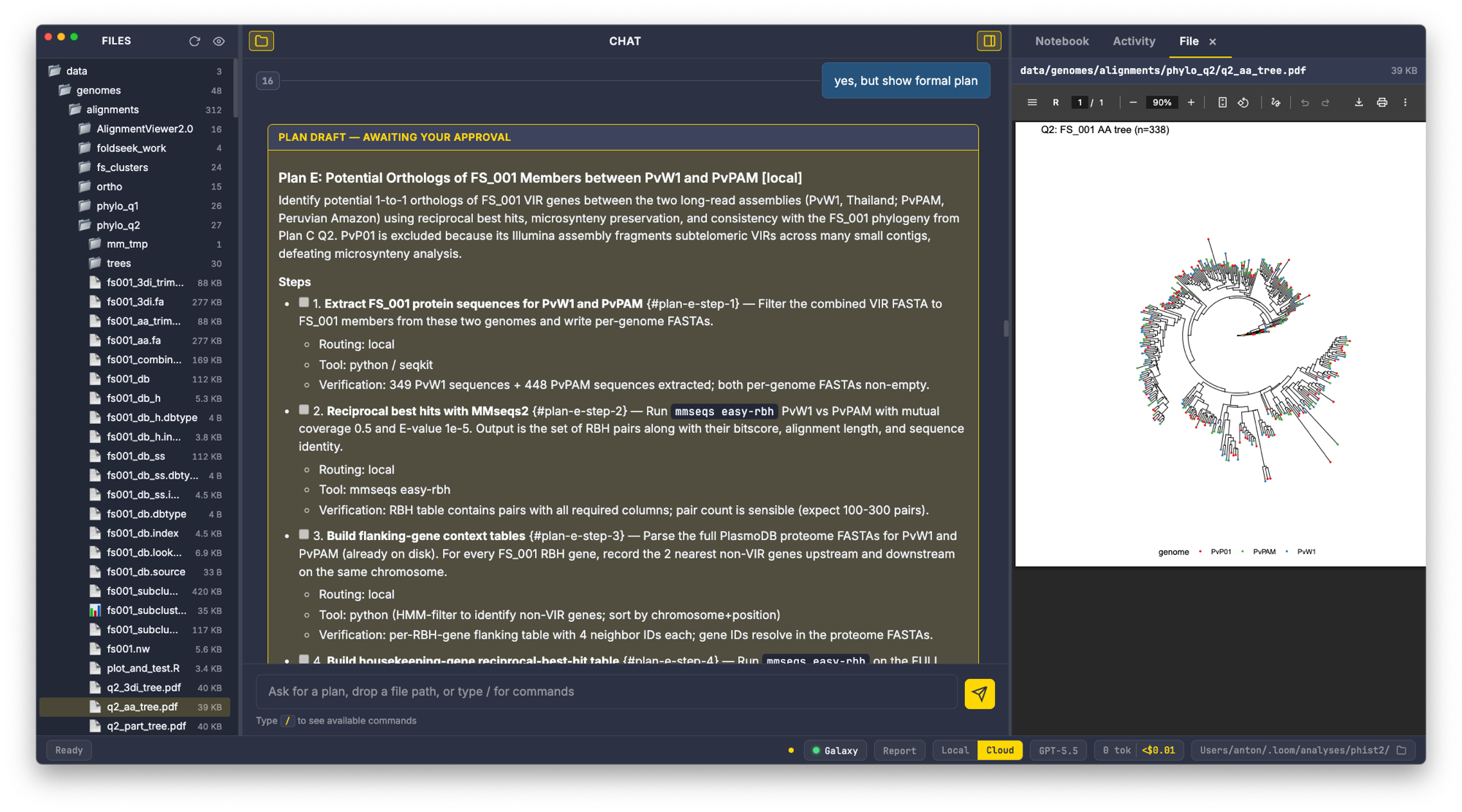
Orbit presents a three-pane layout:
Left — Files panel. A file tree for the current working directory. Click any file to open it in the File tab. At narrow window widths (below 900 px) the tree auto-collapses; restore it with Cmd/Ctrl+B or the toolbar button.
Center — Chat. The main conversation area. Type a message or a slash command and press Enter. Responses stream in with a thinking indicator; markdown tables and code blocks render inline. Prompt turns are numbered — /summarize 3 5 references those numbers. Press ↑/↓ to recall previous prompts.
Right — Artifact pane. Three tabs:
- Notebook — live render of
notebook.md, auto-refreshed on every file change. This is the accumulating project log. - Activity — split horizontally: agent shell stream on top (live tool calls, stdout from
run_command), proc monitor on the bottom (CPU / memory / runtime for every subprocess the agent spawns). - File — appears when you open a file from the left tree. Previews text (Markdown, code, JSON/YAML, FASTA/FASTQ/VCF/BED/GFF/SAM/Newick and more), images, and PDFs. Dismiss with
×.
Toggle the artifact pane with Cmd/Ctrl+\. The footer shows the Galaxy connection indicator (green = connected, red = no key) and live session cost/token totals.

Starting an analysis
Open Orbit in your analysis directory (Cmd/Ctrl+O to switch directories). Then just talk:
You: I have RNA-seq data from a drug treatment experiment — 6 samples,
     3 treated and 3 control HeLa cells. The data is at GEO accession GSE164073.
The agent responds conversationally. It can look up data, answer questions, check Galaxy’s workflow registry, and browse the tool catalog — none of this requires a formal plan.
When you ask for a plan, the agent drafts it in chat as a markdown section, then pauses. Four stages follow before anything lands in notebook.md:
- Draft in chat. The agent writes a candidate plan. Not written to the notebook yet.
- Plan approval. You review the steps and routing tags (
[local],[hybrid],[remote]). Reply “looks good”, “go”, or request changes. The agent revises and asks again. - Parameter table in chat. The agent shows every configurable parameter per tool with defaults. You can adjust inline (“set min_qual to 30, leave others”).
- Parameter approval. Once you approve, the agent writes the plan section into
notebook.mdand begins execution.
A plan section in the notebook looks like:
## Plan A: HeLa Drug Treatment RNA-seq DE [hybrid]

### Steps
- [ ] 1. **Quality + trimming** — fastp paired collection
  - Routing: Galaxy (fastp/0.23.4)
- [ ] 2. **Alignment** — HISAT2 to hg38
  - Routing: Galaxy (hisat2/2.2.1)
- [x] 3. **featureCounts**
  - Routing: Galaxy (featurecounts/2.0.3)
- [ ] 4. **DESeq2 differential expression**
  - Routing: Galaxy (deseq2/1.40.2)
Step status: - [ ] pending, - [x] verified complete, - [!] failed.
Come back the next day in the same directory and the session resumes automatically:
Orbit: Loaded notebook: HeLa Drug Treatment RNA-seq DE
       Plan A is in progress (1 of 4 steps complete).
       The fastp invocation finished successfully. HISAT2 alignment is queued.
       Should I check_all to advance, or do you want to review the QC report first?
Slash commands
Type / to open the autocomplete popup. Tab to complete; Enter submits.
| Command | What it does |
|---|---|
/model <name> | Switch the LLM model — use the exact model ID (e.g. /model claude-sonnet-4-6, not /model sonnet) |
/new | Start a fresh session. Confirms before clearing the existing notebook |
/resume | Restart the agent and replay the prior session’s chat |
/chat | Restore the chat pane from the session transcript without restarting the agent |
/plan | Show the current plan summary |
/status | Galaxy connection status and notebook path |
/notebook | Show notebook info in the Notebook tab |
/summarize [N [M]] | Append a summary of prompts N–M into the notebook |
/cost | Append the session token/cost breakdown to the notebook |
/decisions | Show the decision log |
/connect | Open Galaxy connection settings or switch to an existing profile |
/execute (/run) | Advance the next pending plan step (polls Galaxy, updates status in place) |
/feedback | Send a bug report / feedback (with optional diagnostics) to the Orbit team |
/help | Show the full command list |
The notebook
notebook.md in your working directory is the project record. Every plan section, executed step, parameter table, interpretation, and follow-up plan appends below the previous one. Multiple plans coexist over a project’s lifetime.
When Loom starts in a directory that is not already a git repo, it runs git init, drops a bioinformatics-friendly .gitignore (excluding FASTQ, BAM, VCF, and other large files), and sets git config loom.managed true. From that point on every notebook write triggers an auto-commit, giving you:
- Full undo history via
git log. - Timestamped, immutable record of every decision.
- Branch-based exploration: try an alternative analysis on a branch, compare with
git diff. - Collaboration: push to GitHub, collaborators pull and continue.
If you start Loom in an existing git repo, auto-commit is off by default. Opt in with git config loom.managed true.
Activity tab
The Activity tab provides two live views:
Shell stream (top half). Every tool call the agent makes — run_command stdout, Galaxy API calls, file reads and writes — streams here in real time. Use it to follow what the agent is doing and catch errors early.
Proc monitor (bottom half). A live table of every subprocess the agent has spawned: process name, PID, CPU%, memory, and elapsed time. Long-running jobs (alignment, assembly) appear here so you can watch progress without leaving Orbit.
Galaxy connection and routing
When Galaxy credentials are present, Loom registers the Galaxy MCP server automatically. The agent then:
- Surveys the Intergalactic Workflow Commission (IWC) workflow registry for a full-pipeline match before drafting any plan.
- Queries Galaxy’s tool catalog for available tool versions.
- Tags each plan step with a routing decision:
[local],[hybrid], or[remote].
A remote plan maps cleanly to a single Galaxy workflow invocation. A hybrid plan mixes local light steps with remote heavy compute. A local plan runs entirely on your machine. These are outcomes of the plan, not settings you configure.
In-flight Galaxy invocations are tracked directly in notebook.md as fenced YAML blocks:
invocation_id: abc123
galaxy_server_url: https://usegalaxy.org
status: in_progress
The /execute command (also /run) tells the agent to advance the next pending step. The polling tool scans the notebook for in-flight blocks, queries Galaxy, and updates status in place.
Skills
Loom can fetch operational know-how from curated GitHub repos. The default repo is galaxyproject/galaxy-skills, seeded automatically on first use. It covers collection manipulation, Galaxy MCP usage, workflow report templates, Nextflow-to-Galaxy conversion, and tool development.
Add additional skill repos in Preferences → Skills. Each entry is a URL under github.com/galaxyproject/ (arbitrary repos are restricted during the beta to prevent prompt-injection). Fetched skills cache locally for 24 hours to cover offline use.
Known issues
Large sessions can exceed a model’s context window
Every model has a fixed context window — the maximum amount of conversation, tool output, and notebook content it can hold at once. Long analyses, especially those that pull large outputs into the chat (for example, a Galaxy history listing with many full dataset records), can grow past this limit. When that happens the model’s provider rejects the request with an error such as:
context_length_exceeded— “Your input exceeds the context window of this model.”
This is most noticeable on the OpenAI GPT-5.x models (including the ChatGPT-subscription OpenAI (Codex) sign-in), which have a roughly 272K-token window. It is not a Galaxy error and does not mean your data is malformed — it is purely a request-size limit. Orbit recovers automatically by compacting the conversation into a summary and continuing, so the compacted summary you see in the chat is that recovery in action. Your work is never lost: notebook.md lives on disk as the durable record.
What to do for now:
- Start a fresh chat without losing your work. Type
/newand choose Keep notebook — this clears the accumulated conversation (what fills the window) while preservingnotebook.mdand the activity log. The agent re-reads the notebook to pick up where you left off. This is the quickest way to reclaim context. - Switch to a larger-context model. DeepSeek V4 (
deepseek-v4-pro/deepseek-v4-flash) offers a 1M-token window — type/model deepseek-v4-proor pick it from the footer. The GPT-5.x and Claude models have smaller windows, so staying within those families adds little room. - Avoid pulling large outputs into the chat. When inspecting Galaxy histories or datasets, ask for targeted fields or a small preview rather than full records for every dataset.
- Watch the footer. The session token counter climbs as context grows; if it approaches the model’s limit, start a fresh chat (
/new→ Keep notebook) before kicking off a large new step.
Gemini may return rate-limit (429) errors during busy periods
Our Gemini (Google) API access is currently on an early spending tier with a per-minute token cap. When usage is heavy — across many testers or within a single large request — Gemini may temporarily reject calls with a quota error such as:
429 RESOURCE_EXHAUSTED— “You exceeded your current quota … Please retry in 30s.”
This is a transient rate limit, not a billing failure or a problem with your key. The response carries a retry delay (for example, “Please retry in ~30s”), and the cap resets automatically as the per-minute window rolls over. It will ease as the project’s Gemini usage tier increases.
What to do for now:
- Wait and retry. Pause for the suggested delay and resend — the request typically succeeds on the next attempt.
- Switch providers to keep working. Type
/modeland pick an OpenAI, Claude, or DeepSeek model to continue without interruption. - No need to report it. This is a known capacity limit on our side, not an Orbit bug.
Getting help
Report a bug — easiest: use the Feedback button inside Orbit, or the /feedback command in
the CLI. It sends your report (with optional diagnostics) straight to the team. Beta testers: this
is your primary channel — we count on a few reports per week.
Questions, discussion, and feature requests: the Galaxy Help forum — help.galaxyproject.org/c/orbit-support/16.
Detailed bugs or crash reports can also go to the GitHub issue tracker.
Related resources
- Loom/Orbit GitHub — source code, releases, issue tracker
- galaxy-mcp — MCP server for the Galaxy API
- galaxy-skills — curated operational skills
- Galaxy Training Network (GTN) — tutorials for Galaxy analyses
- usegalaxy.org — main Galaxy server for obtaining an API key