
Galaxy FTP Upload
On this page
UseGalaxy.eu FTP Server
We integrated a new way to upload data into Galaxy based on tus.io. This enables users to upload large amounts of data via the web interface in a more reliable way with resumable file upload support. This also means that the 1 GB limit for uploads via your browser does not exist anymore. Try out the new upload system and let us know how it goes.
| Server | Port | Properties |
|---|---|---|
ftp.usegalaxy.eu | 21 | Secure connections only (TLS). |
UseGalaxy.eu Credentials
Use the same email address and password that you use to log in to usegalaxy.eu.
UseGalaxy.eu Service Policies
Any user data uploaded to our FTP server should be imported into Galaxy as soon as possible. Data left in FTP folders for more than 3 months will be deleted.
Upload Multiple Files Using FileZilla
This is intended for regular users who want to access the service through a desktop client.
We suggest installing and trying a simple application like FileZilla, available for Windows, macOS, and Linux operating systems.
All default settings should work:
- Type in the
ftp.usegalaxy.euURL. - Type in your email and password, the same credentials used to log into Galaxy at that server.
- Click the button for quick connect.
- Review and accept the certificate pop-ups.
Then it is as simple as navigating to the files on your computer on the left side and dragging them over to the server on the right side. The transfer status will be reported in the bottom tabs.
Don’t quit out of the application or let your computer sleep until the full data transfer is completed. Should a connection drop or a partial file transfer occur:
- Click quick connect again.
- Review and accept server certificate pop-ups, if requested.
- Click “resume transfer”.
Upload Multiple Files Via curl
This is intended for expert users who want to access the service through a command line.
curl -T {"file1,file2"} --user user@name.de --ssl ftp://ftp.usegalaxy.euThe comma-separated list of files needs to be quoted and must not contain spaces: {"file1,file2"}.
UseGalaxy.eu Troubleshooting
If you are experiencing a “Connection timed out after 20 seconds of inactivity” error, try the suggestions shown on this Galaxy Help thread.
Generic Galaxy FTP Upload
Uploading data directly from the browser can be unreliable and cumbersome. Because of this some Galaxy instances allow you to upload data via FTP. FTP will allow you to monitor the upload status as well as resume interrupted transfers. Compression types .gz/.gzip, .bz/.bzip, .bz2/.bzip2, and single-file .zip are also supported.
Introduction
If you are completely new to FTP transfers you might benefit from reading a wikihow page about it.
To get started using FTP with Galaxy, you’ll need to have registered a regular Galaxy account. If you are signed-in to Galaxy using a third-party identity and you do not have a Galaxy password please use the reset password option in the login form with your email to create a password for your account.
Once you have a username and a password, you can initiate an FTP connection in your preferred FTP client. Please see the comparison of available FTP clients.
Upload with a client
In this example, FileZilla for MacOS is used. Point your client to the FTP server hostname provided in the upload modal window (e.g. ftp.usegalaxy.eu for Galaxy Europe).
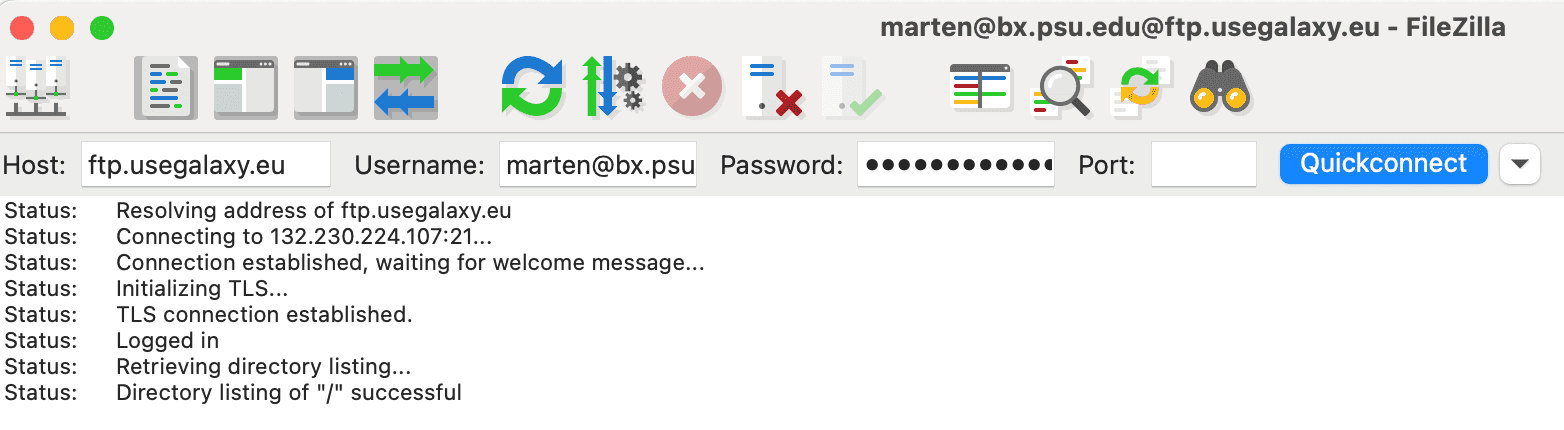
If you are having trouble connecting to the server try enabling FTP with passive mode in your client.
In most clients, when a connection is made with FTP or FTPS, a pop-up server certificate authentication will need to be accepted.
For more help ask at Galaxy Help.
Upload using command line
lftp
In this example, lftp for MacOS is used.
First, check to see if lftp is installed. Type in the command and the prompt will result, as show below, if installed. Type exit at the prompt to back out of the session.
$ lftp
lftp :~>
If the command is not found, brew can be used to install lftp. Instructions when using MacOS.
Command-line for lftp when connecting to an example Galaxy server. Executing the command will prompt for your password. Your email (aka user@email.example) and password are exactly the same as when logging into your account at https://usegalaxy.example.
For explicit FTPS:
$ lftp -u user@email.example ftp.usegalaxy.exampleFor implicit FTPS:
$ lftp -u user@email.example ftps://ftp.usegalaxy.exampleOn some Galaxy servers FTPS may or may not be enabled, or the server may only accept implicit or explicit FTP/FTPS connections. Check with the administrators of that server if you are not sure.
ftp
General FTP command for a Galaxy server that has FTP enabled but not FTPS is below. The email (aka user@email.example) and password is also server specific and the same as when logging in through a browser.
$ ftp -u user@email.example ftp.usegalaxy.exampleImport to Galaxy
Files uploaded to the FTP server won’t automatically be imported to your history - rather, you will be presented with a list of the contents of your FTP directory in the standard upload interface. Select the ones you want to import and hit Start.
Depending on the configuration of your Galaxy the import dialogue will be either under Upload -> Choose FTP Files or Upload -> Choose Remote Files -> FTP Directory.
Configure your Galaxy as Admin
To configure FTP upload in your installations of Galaxy follow the instructions in the admin documentation.