
Orbit
A desktop app for doing analysis with an AI agent. Talk through your data, approve a plan, and Orbit runs it on Galaxy or on your own machine, keeping a notebook of every decision.
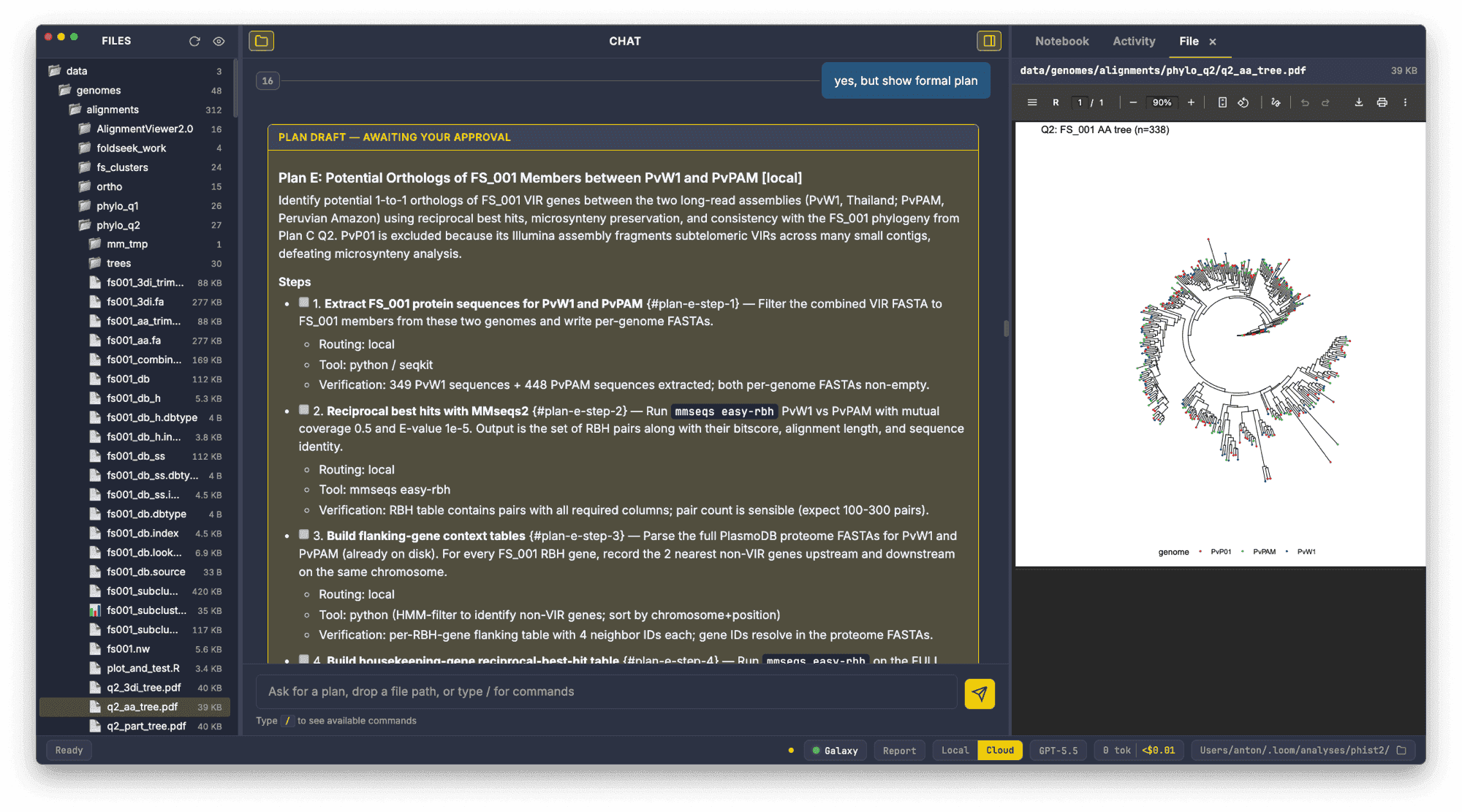
What you can ask it
Whole analyses, in plain language. Each of these runs as a single session:
“PIR genes are central to P. vivax immune evasion and we still don’t understand their subfamily structure. Find the latest long-read assemblies, extract all PIR sequences, cluster them de novo, and show me how the subfamilies are distributed across strains from different continents and genomic locations.”
Literature survey, SRA discovery, sequence extraction, clustering, comparative analysis
“This paper used an outdated C. auris reference: PMID 37769084. Pull every SRA dataset they deposited, rerun the analysis against the current genome, and tell me what changes. I want to know if their conclusions still hold.”
Paper parsing, bulk SRA download, Galaxy workflow runs, differential comparison
“I just did Cut&Run for H3K27ac in treated vs. control. FASTQs are in my Downloads folder. Walk me through the analysis, call the peaks, and overlay them with the RNA-seq differential expression I ran last month. I want to know which DEGs have changed chromatin accessibility.”
Local file discovery, Galaxy tool routing, peak calling, cross-experiment integration
Installation
Every build is on the Releases page. Pick the file for your computer:
| Your system | File | Notes |
|---|---|---|
| macOS, Apple Silicon (M1 and later) | Orbit-<version>-arm64.dmg | Signed and notarized |
| macOS, Intel | Orbit-<version>-x64.dmg | Signed and notarized |
| Linux: Debian, Ubuntu, Mint, Pop!_OS | orbit_<version>_amd64.deb | sudo dpkg -i <file> |
| Linux: Fedora, RHEL, CentOS, openSUSE | orbit-<version>-1.x86_64.rpm | sudo rpm -i <file> |
| Linux, any distro | Orbit-linux-x64-<version>.zip | Extract and run orbit |
| Windows | Orbit-win32-x64-<version>.zip | Portable and unsigned; remote-only |
Every platform also has a portable .zip (Orbit-darwin-arm64-…, Orbit-darwin-x64-…, Orbit-linux-x64-…, Orbit-win32-x64-…): extract it and run, no system install. On Windows it’s the only build. The Source code archives are only for building Orbit yourself.
macOS
Download the .dmg for your chip, then:
- Double-click the DMG and drag Orbit to Applications.
- Eject the DMG and open Orbit. It’s signed and notarized, so it opens like any other app.
Not sure which chip you have? Open the Apple menu and choose About This Mac. “Chip: Apple M…” means Apple Silicon (arm64); “Processor: Intel…” means Intel (x64).
Linux
On Debian or Ubuntu:
sudo dpkg -i orbit_<version>_amd64.deb
sudo apt-get install -f  # pulls in any missing dependencies
orbit
On Fedora or RHEL:
sudo rpm -i orbit-<version>-1.x86_64.rpm
orbit
Or extract Orbit-linux-x64-<version>.zip anywhere and run orbit from it.
Windows
- Download
Orbit-win32-x64-<version>.zipfrom the Releases page. - Extract it anywhere you can write to.
- Run Orbit.exe. The build is unsigned, so the first time Windows will probably show a SmartScreen warning: choose More info, then Run anyway.
Windows builds are remote-only. The agent has no shell on your machine, so everything it runs goes to your Galaxy server. It can still read and write files in the project directory, and most of what Orbit does routes to Galaxy anyway; what you give up is running the light steps of a plan locally.
Windows with a local shell, through WSL2
If you want local execution on Windows, run the Linux build under WSL2. On Windows 11 with WSLg, the .deb runs directly with no X server setup.
From an elevated PowerShell, install WSL2 if you don’t have it:
wsl --install --web-download -d UbuntuThen, in the Ubuntu terminal, download the .deb from the Releases page and run:
sudo dpkg -i orbit_<version>_amd64.deb
sudo apt-get install -f
orbit
Keep analysis data inside ~/ (the Linux filesystem); paths under /mnt/c/ are much slower. WSL2 has no safeStorage, so API keys are stored in plain text in ~/.loom/config.json. Lock it down with chmod 600 ~/.loom/config.json.
Set up
Get a model API key
Orbit needs a key from at least one model provider.
Provider Where to create a key Anthropic (Claude) console.anthropic.com, API Keys › Create Key OpenAI platform.openai.com, Settings › API keys › Create new secret key Google Gemini aistudio.google.com, Get API key › Create API key DeepSeek platform.deepseek.com, API Keys › Create API Key If you already pay for ChatGPT Plus or Pro, you can sign in with that subscription instead of using an OpenAI key.
Get a Galaxy API key
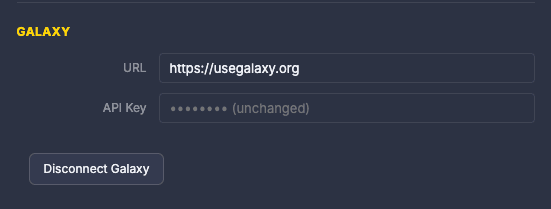
This is what lets Orbit run steps on Galaxy. Log in to your Galaxy server (for example usegalaxy.org), open User › Preferences › Manage API Key, and copy your key or create one.
Enter them in Orbit
Open Preferences with
Cmd/Ctrl+,, or click the Galaxy indicator in the footer. Under Provider, pick your provider, paste the key and choose a default model. Under Galaxy, enter your server URL and key; the footer indicator turns green once it connects. Click Save and the agent restarts with the new settings.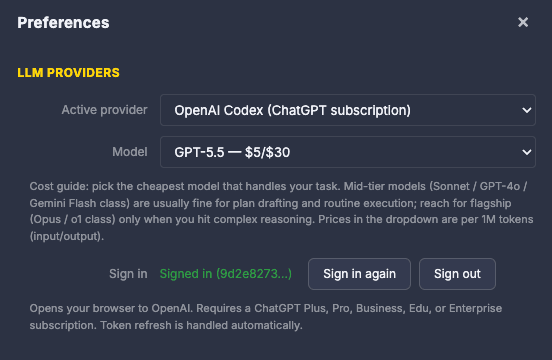
Choosing a model
The model is what reads your descriptions of the data, drafts the plan, decides where each step runs and interprets the results. Designing an analysis (surveying the literature, working out a multi-step plan) benefits from the most capable model you can afford. Running an approved plan is mostly repetitive, and a cheaper model does it just as well; if you /execute on an expensive model, Orbit reminds you once that you could switch.
With Anthropic keys, start with Claude Sonnet 4.6. It’s capable enough for demanding work, fast, and roughly 5× cheaper than Opus.
Anthropic (Claude)
| Model | Best for | Price per 1M tokens (in / out) |
|---|---|---|
claude-opus-4-7 | Complex planning, literature surveys, novel analysis design | $15 / $75 |
claude-sonnet-4-6 | Planning and execution; the recommended default | $3 / $15 |
claude-haiku-4-5 | Running explicit step-by-step plans | $1 / $5 |
OpenAI
| Model | Best for | Price per 1M tokens (in / out) |
|---|---|---|
gpt-5.4 | Frontier reasoning, complex multi-step analysis | not yet listed |
gpt-5.4-mini | Balanced capability and cost | not yet listed |
o3 | Deep scientific reasoning, extended chain of thought | not yet listed |
o3-mini | Lightweight reasoning, execution | not yet listed |
gpt-4o | General reasoning, plan drafting | $2.50 / $10 |
gpt-4o-mini | Fast execution, cost-sensitive sessions | $0.15 / $0.60 |
Check the OpenAI pricing page for current rates.
Google Gemini
| Model | Best for | Price per 1M tokens (in / out) |
|---|---|---|
gemini-3.1-pro-preview | Complex reasoning, agentic tasks | $2–$4 / $12–$18 |
gemini-3.5-flash | Production workloads, sustained performance | $1.50 / $9 |
gemini-3.1-flash-lite | High-volume, cost-efficient execution | $0.25 / $1.50 |
gemini-2.5-flash-lite | Fastest, cheapest option | $0.10 / $0.40 |
DeepSeek
| Model | Best for | Price per 1M tokens (in / out) |
|---|---|---|
deepseek-v4-pro | Strong reasoning at very low cost, 1M context | $0.44 / $0.87 |
deepseek-v4-flash | Fast execution, budget sessions, 1M context | $0.14 / $0.28 |
Both DeepSeek V4 models have a thinking mode for extended reasoning and a standard mode for direct answers, and they cost roughly a tenth to a twentieth of comparable Anthropic and OpenAI models.
Other providers
Mistral, Groq, xAI (Grok) and local Ollama models (Qwen3) are under Preferences › Provider. Ollama models run entirely on your machine with no API cost, but they need to be installed first (Orbit can help with that) and you need a computer with a substantial GPU to make local inference worthwhile (see Nekrutenko 2026).
Switching models
You can switch at any point in a session, and that’s intentional: design the analysis on a capable model, then drop to a cheaper one to run it.
- Footer: click the model name in the footer to open Preferences on the model selector.
- Preferences: open with
Cmd/Ctrl+,, pick a provider or model, and click Save. - Chat: type
/model <name>with the exact model ID, such as/model claude-sonnet-4-6(not/model sonnet). The agent restarts on the new model right away.

API keys vs. subscription
For most providers (Anthropic, Google, DeepSeek, Mistral and the rest) Orbit uses the provider’s API, and you pay the provider per token at the rates above.
OpenAI also lets you sign in with an existing ChatGPT subscription. Choose OpenAI Codex (ChatGPT subscription) in Preferences and click Sign in with ChatGPT; models then run against your subscription instead of the pay-per-token API, which is usually cheaper if you already pay for Plus or Pro. Only OpenAI supports this for now. We’re looking at whether Anthropic (Claude.ai) and Google (Gemini Advanced) could work the same way.
Using Orbit
The window
Files
The file tree for the working directory. Click a file to open it on the right. Below 900 px wide the tree collapses; bring it back with Cmd/Ctrl+B.
Chat
The conversation. Type a message or a slash command and press Enter. Tables and code render inline, prompts are numbered (so /summarize 3 5 can refer to them), and ↑/↓ recall earlier prompts.
Notebook, Activity, File
Notebook is a live view of notebook.md. Activity streams every tool call and command output, with a process monitor underneath (CPU, memory and run time for everything the agent starts). File previews whatever you opened: text, code, sequence and alignment formats, images and PDFs. Toggle the pane with Cmd/Ctrl+\.
The footer shows the Galaxy connection (green when connected, red when there’s no key), the routing mode, the model, and the session’s running token count and cost.

Starting an analysis
Open Orbit in your analysis directory (Cmd/Ctrl+O switches directories) and just talk:
You: I have RNA-seq data from a drug treatment experiment: 6 samples,
     3 treated and 3 control HeLa cells. The data is at GEO accession GSE164073.
The agent can look up data, answer questions, check Galaxy’s workflow registry and browse the tool catalog without any formal plan. When you ask for one, nothing lands in notebook.md until you’ve approved it twice:
- Draft. The agent writes a candidate plan in chat.
- Approve the plan. You review the steps and their routing tags (
[local],[hybrid],[remote]). Say “go”, or ask for changes and it revises. - Review the parameters. The agent lists every configurable parameter for each tool with its default. Change what you like: “set min_qual to 30, leave the rest”.
- Approve the parameters. The plan is written to
notebook.mdand execution starts.
A plan in the notebook looks like this. Steps are - [ ] pending, - [x] verified complete, or - [!] failed:
## Plan A: HeLa Drug Treatment RNA-seq DE [hybrid]

### Steps
- [ ] 1. **Quality + trimming**: fastp paired collection
  - Routing: Galaxy (fastp/0.23.4)
- [ ] 2. **Alignment**: HISAT2 to hg38
  - Routing: Galaxy (hisat2/2.2.1)
- [x] 3. **featureCounts**
  - Routing: Galaxy (featurecounts/2.0.3)
- [ ] 4. **DESeq2 differential expression**
  - Routing: Galaxy (deseq2/1.40.2)
Come back the next day in the same directory and the session picks up where it left off:
Orbit: Loaded notebook: HeLa Drug Treatment RNA-seq DE
       Plan A is in progress (1 of 4 steps complete).
       The fastp invocation finished successfully. HISAT2 alignment is queued.
       Should I check_all to advance, or do you want to review the QC report first?
Slash commands
Type / for autocomplete; Tab completes and Enter runs.
| Command | What it does |
|---|---|
/model <name> | Switch models, by exact ID (/model claude-sonnet-4-6, not /model sonnet) |
/new | Start a fresh session; asks before clearing the notebook |
/resume | Restart the agent and replay the previous session’s chat |
/chat | Restore the chat pane from the transcript without restarting the agent |
/plan | Show the current plan |
/status | Galaxy connection status and notebook path |
/notebook | Show notebook info in the Notebook tab |
/summarize [N [M]] | Add a summary of prompts N to M to the notebook |
/cost | Add the session’s token and cost breakdown to the notebook |
/decisions | Show the decision log |
/connect | Open Galaxy connection settings, or switch to a saved profile |
/execute (/run) | Advance the next pending plan step, polling Galaxy and updating its status |
/feedback | Send a bug report or feedback, with optional diagnostics |
/help | List every command |
How it works with Galaxy
Routing
With Galaxy credentials in place, Orbit connects to Galaxy’s MCP server on its own. Before drafting a plan, the agent checks the Intergalactic Workflow Commission (IWC) registry for a workflow that already does the whole job, then looks up tool versions in Galaxy’s catalog and tags each step:
[remote]plans map to a single Galaxy workflow invocation.[hybrid]plans run light steps on your machine and the heavy compute on Galaxy.[local]plans run entirely on your machine.
These describe the plan the agent came up with; they aren’t settings. On Windows there’s no local shell, so every step goes to Galaxy.
Galaxy invocations that are still running are tracked in notebook.md as loom-invocation blocks:
invocation_id: abc123
galaxy_server_url: https://usegalaxy.org
notebook_anchor: plan-1-step-3
label: BWA alignment
submitted_at: 2026-04-25T15:30:00Z
status: in_progress
summary: ""
The loom-invocation fence is what makes the block machine-readable; a plain yaml fence is ignored. Every field above is required, and a block missing any of them is skipped rather than half-read. As Orbit polls, it adds progress counters to the same block (total_steps, completed_steps, total_jobs, completed_jobs, failed_jobs, last_polled_at), which drive the progress bar. /execute (or /run) advances the next pending step: it finds the in-flight blocks, asks Galaxy for their status and updates them in place.
The notebook
notebook.md in your working directory is the project record. Every plan, executed step, parameter table, interpretation and follow-up plan is appended below the last, and several plans can live in one project.
If the directory isn’t already a git repository, Orbit runs git init, adds a .gitignore that leaves out FASTQ, BAM, VCF and other large files, and sets git config loom.managed true. After that, every notebook change is committed automatically, so you get:
- a full undo history with
git log; - a timestamped record of every decision;
- branches for trying an alternative analysis, compared with
git diff; - collaboration by pushing to GitHub for others to pull and continue.
In a directory that’s already a git repository, auto-commit is off until you opt in with git config loom.managed true.
Skills
Orbit fetches operational know-how from curated GitHub repositories. The default, galaxyproject/galaxy-skills, is fetched on first use and covers collection handling, Galaxy MCP usage, workflow report templates, Nextflow-to-Galaxy conversion and tool development.
Add more repositories under Preferences › Skills. During the beta they have to live under github.com/galaxyproject/, to guard against prompt injection. Fetched skills are cached for 24 hours so they keep working offline.
Known issues
Long sessions can outgrow the model’s context window
Every model can hold only so much conversation, tool output and notebook at once. Long analyses, especially ones that pull big outputs into the chat (a history listing with many full dataset records, say), can go past that limit, and the provider rejects the request with an error like:
context_length_exceeded: “Your input exceeds the context window of this model.”
It shows up most on the OpenAI GPT-5.x models, including the ChatGPT-subscription sign-in, which have a window of about 272K tokens. It isn’t a Galaxy error and doesn’t mean anything is wrong with your data. Orbit recovers by compacting the conversation into a summary and carrying on (that’s the summary you’ll see in the chat), and your work is safe in notebook.md on disk.
- Start a fresh chat and keep your work. Type
/newand choose Keep notebook. The conversation is cleared, the notebook and activity log stay, and the agent rereads the notebook to pick up where you were. - Switch to a bigger window. DeepSeek V4 has a 1M-token window:
/model deepseek-v4-pro, or pick it in the footer. Switching between GPT-5.x and Claude models gains you little. - Keep big outputs out of the chat. Ask for specific fields or a short preview rather than full records for every dataset.
- Watch the footer. If the token count gets close to the model’s limit, start a fresh chat before kicking off a big new step.
Gemini can return rate-limit (429) errors when it’s busy
Our Gemini access is on an early spending tier with a per-minute token cap, so under heavy use Gemini may briefly reject calls with:
429 RESOURCE_EXHAUSTED: “You exceeded your current quota … Please retry in 30s.”
That’s a temporary rate limit, not a billing problem or a bad key, and it clears as the minute rolls over. Wait the suggested time and resend, or type /model and switch to an OpenAI, Claude or DeepSeek model to keep going. There’s no need to report it; it will ease as our Gemini tier goes up.
Getting help
- Bugs: the Feedback button in Orbit, or
/feedbackin the CLI, sends your report (with optional diagnostics) straight to the team. If you’re a beta tester, this is the main channel, and we’re counting on a few reports a week. - Questions, discussion and feature requests: the Orbit category on the Galaxy Help forum.
- Detailed bug or crash reports: the GitHub issue tracker.
Related resources
- galaxyproject/loom: Orbit’s source code, releases and issue tracker
- How Orbit and Loom work: the project site
- galaxy-mcp: the MCP server for the Galaxy API
- galaxy-skills: the curated Galaxy skills
- Galaxy Training Network: tutorials for Galaxy analyses
- Plugins for your own coding agent: Galaxy in Claude Code, Codex, Antigravity or Pi instead